Session can be created under the created event from event list as well navigate from menu. To create sessions, follow these steps:
- Navigate to the menu, expand events and click on the session and you will land on sessions list
- Click on create session button
 you will be directed to session create form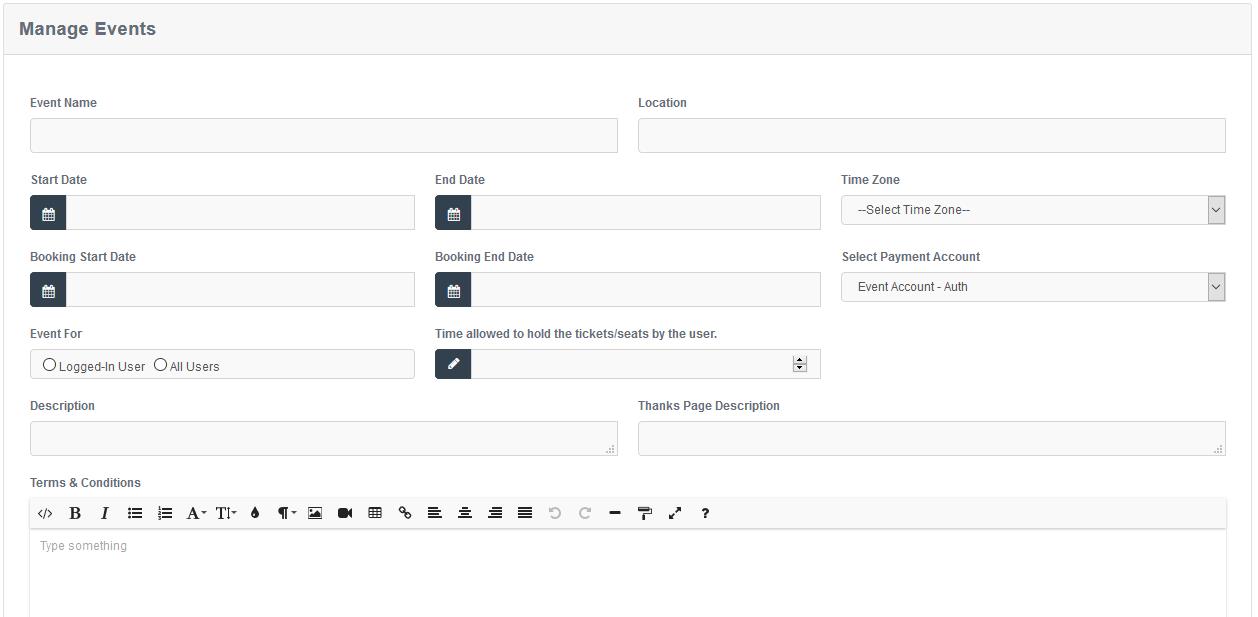
- With seating chart, an event key needs to be entered which can be copied from Seating charts.
- Without seating chart, total tickets quantity needs to be provided.
- Fill in the information and click on submit button

- Click on the back button
 to go back to the Sessions list
 - By clicking on edit
 you will be redirected to edit where complete information can be edited.
 - To delete a session, click on
 button, and you will be redirected on a confirmation page. (if any record is not associated with the session)
 - Click on the duplicate button
 to create a duplicate session
 - Click on the chart management
 to see the summary, status or to edit the chart.