To create exhibition, follow these steps:
⦁ Navigate to the menu, expand exhibition and click on the Exhibitions and you will land on Exhibition list (if any)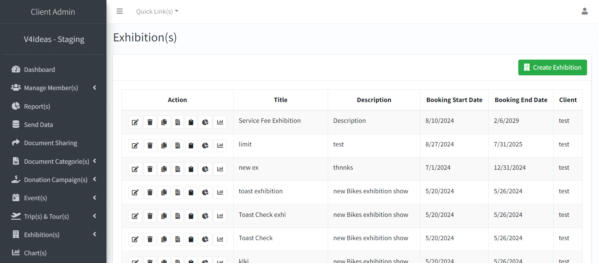
⦁ Click on Create Exhibition button to proceed with the creation process.
⦁ An event key must be provided to generate the exhibition visual chart, from which booth/stage can be selected for registration by vendors.
⦁ Fill in the complete information.
⦁ A discount plan can also be added
⦁ Click on save button to create the exhibition.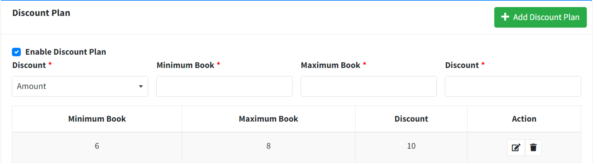
⦁ Click on the back button  , to go back to the Exhibition list.
⦁ To update an existing Exhibition, click on the edit icon  on Exhibition list and the existing details can be edited.
⦁ To delete an existing Exhibition, click on the delete icon on Exhibitions list and the Exhibition will be deleted after confirming from you again (if any record is not associated with the Exhibition)
⦁ Click on the chart management , to see the summary, status or to edit the chart.
⦁ To duplicate an Exhibition, click on duplicate icon  on Exhibition list.
⦁ To Copy a URL on Exhibition, Click on copy icon  on Exhibition List.
⦁ To Create an Invoice on Exhibition, Click on Create invoice icon on Exhibition List.
⦁ List can be exported to csv or Excel formal by clicking on